How to Clear Mobile Legends Cache (and Fix Lag & Broken Skins)
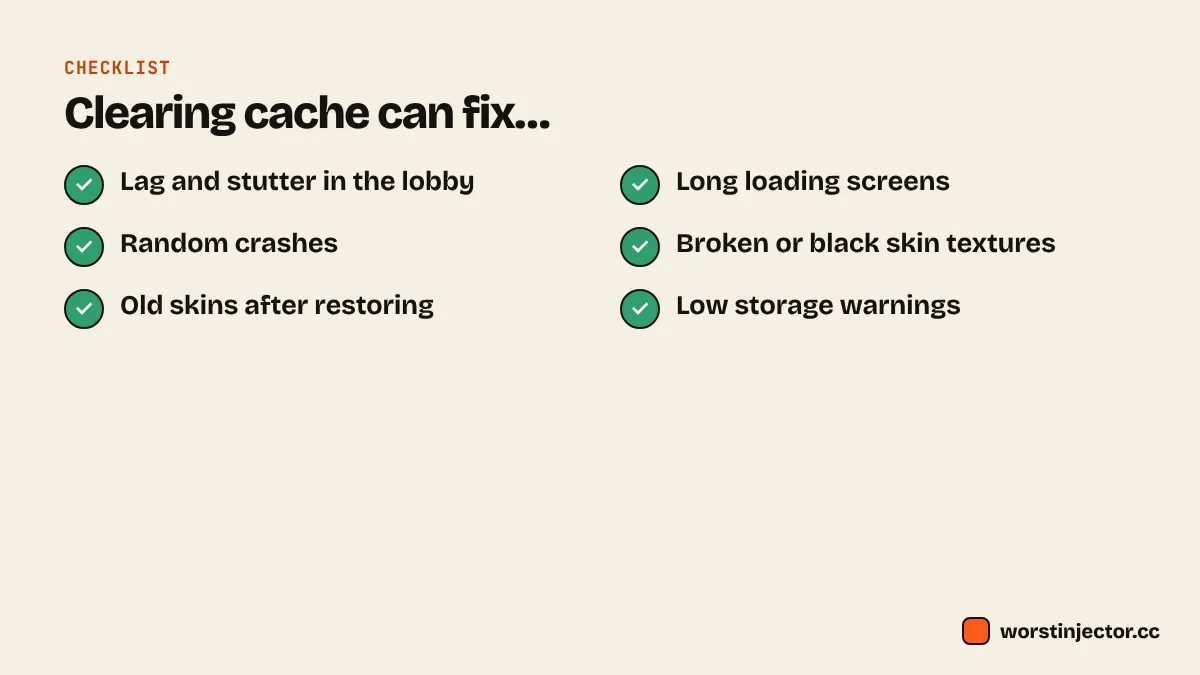
Clearing the Mobile Legends cache is one of the quickest fixes for lag, long loading times, random crashes and skins that look wrong after using an injector. It’s safe, it doesn’t delete your account, and it only takes a minute.
This guide covers two methods, what each one fixes, and the one button you should avoid.
Quick answer: In the game, open Settings → Network or Basic and use the cache cleaner. Or on Android, go to Settings → Apps → Mobile Legends → Storage → Clear cache. Don’t tap Clear data.
What the cache is (and why clearing it helps)
The cache is temporary data the game saves to load faster: images, small downloaded files, logs. Over time it can grow large or keep outdated files, especially after updates or after using a skin injector.
Method 1: Use the in-game cache cleaner
Mobile Legends includes its own cleaner that removes temporary files without touching your game resources.
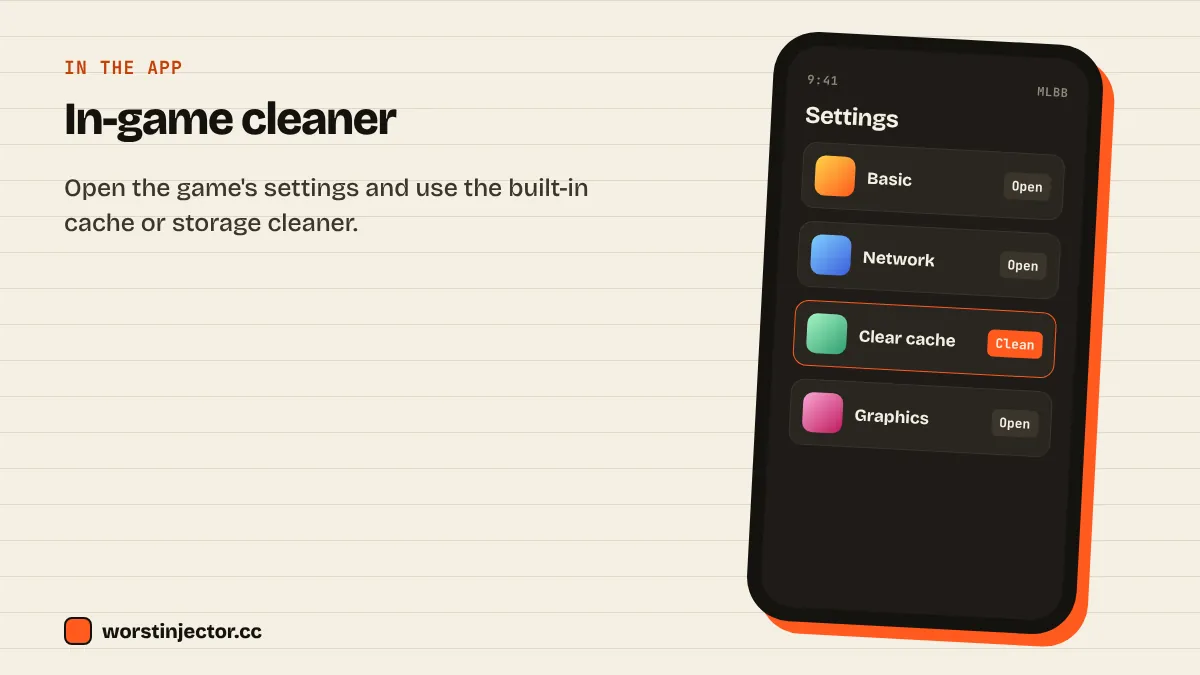
- Open Mobile Legends and tap the Settings gear.
- Look in the Basic or Network tab for a cache or storage cleaner. The exact location changes between updates.
- Tap it and confirm.
- Restart the game.
Method 2: Clear cache in Android settings
This method works even if the game won’t open.
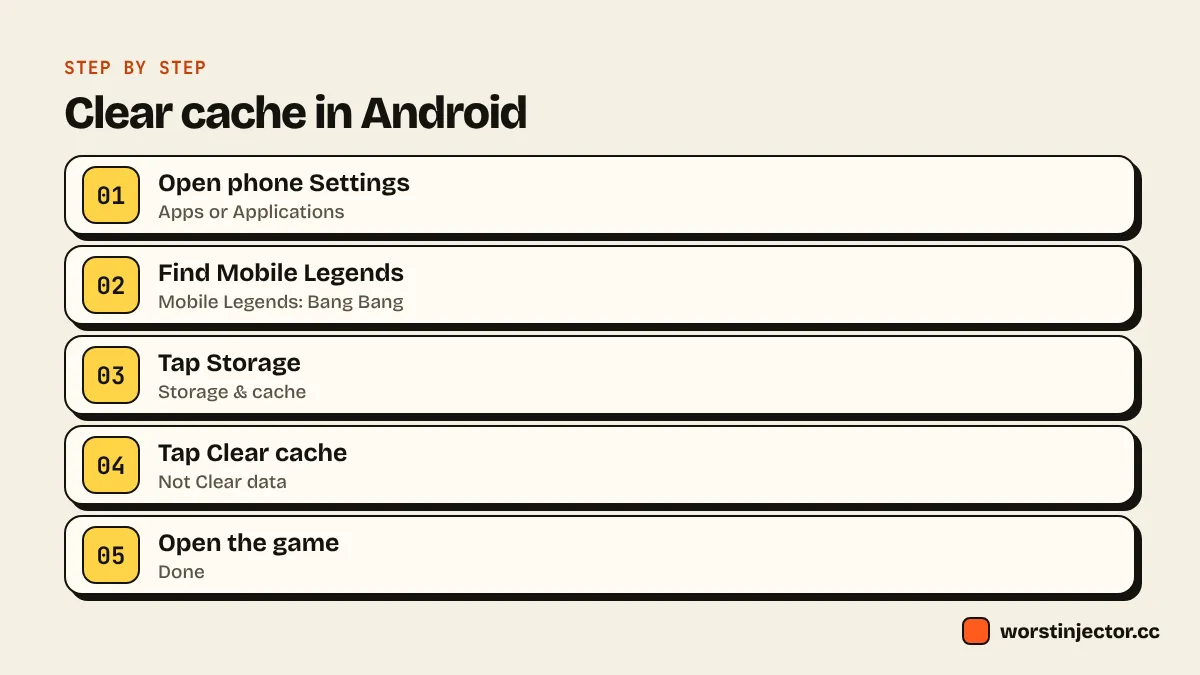
- Open your phone’s Settings.
- Go to Apps (or Applications / App management).
- Select Mobile Legends: Bang Bang.
- Tap Storage (or Storage & cache).
- Tap Clear cache.
Clear cache vs Clear data: don’t mix them up
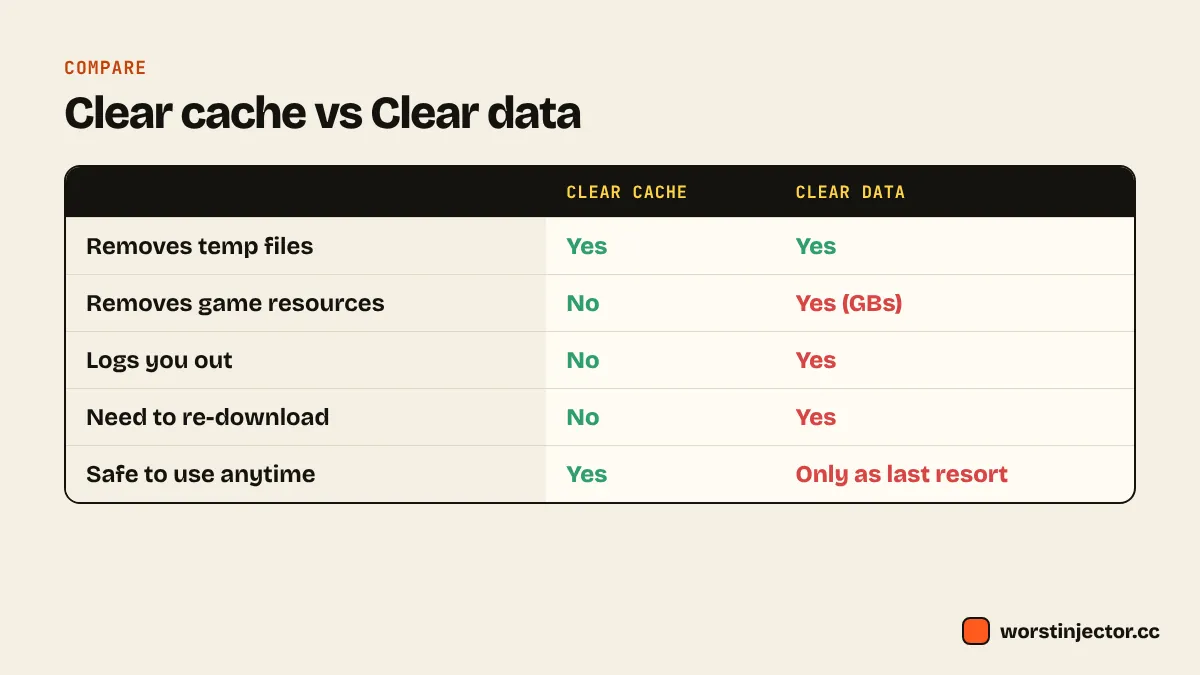
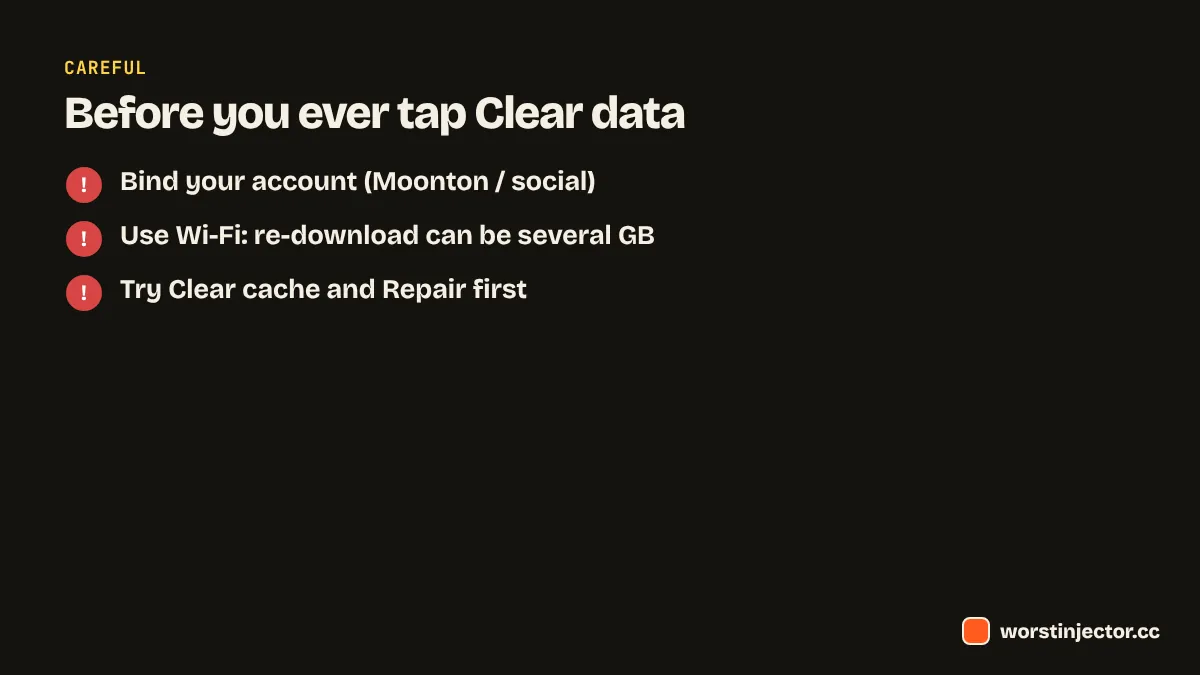
Clear data deletes everything the game downloaded, which can be several gigabytes. You’ll be logged out and have to download all resources again. Only use it as a last resort, and make sure your account is bound to Moonton or a social login first.
After using an injector: clear cache in the right order
If you used Worst Injector and skins look broken, the order matters:
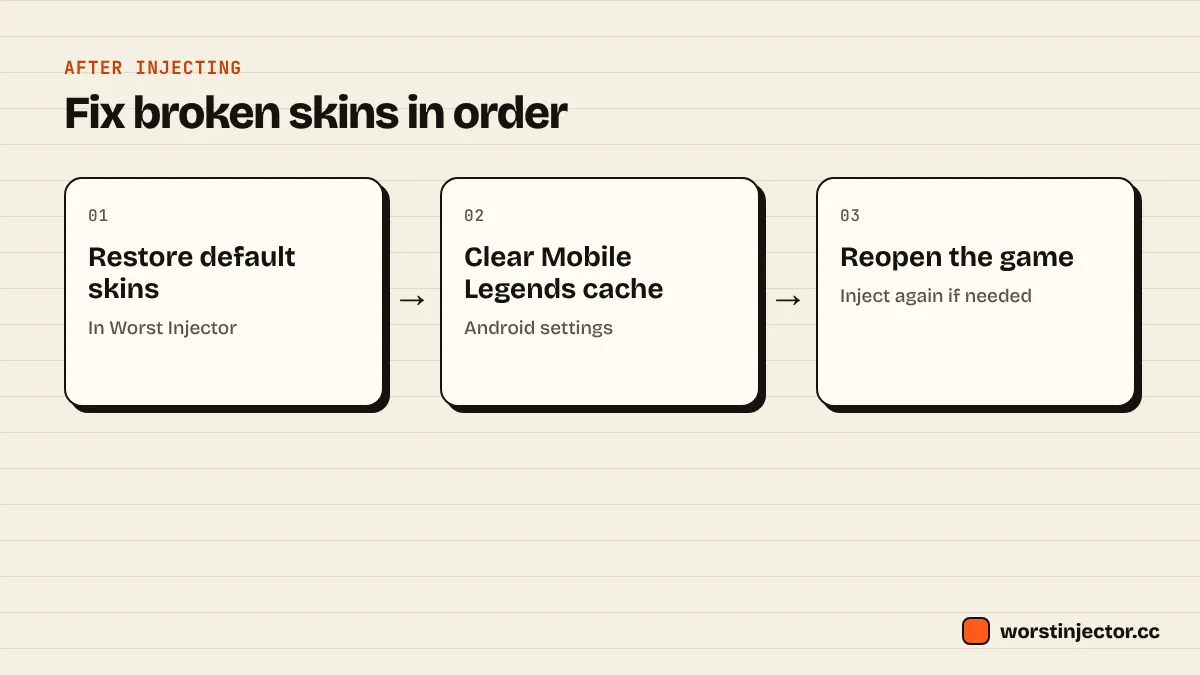
- Restore default skins in Worst Injector. See our restore guide.
- Clear the Mobile Legends cache with Method 1 or 2.
- Reopen the game. If you still want an injected skin, inject it again now.
Still lagging? Other quick fixes
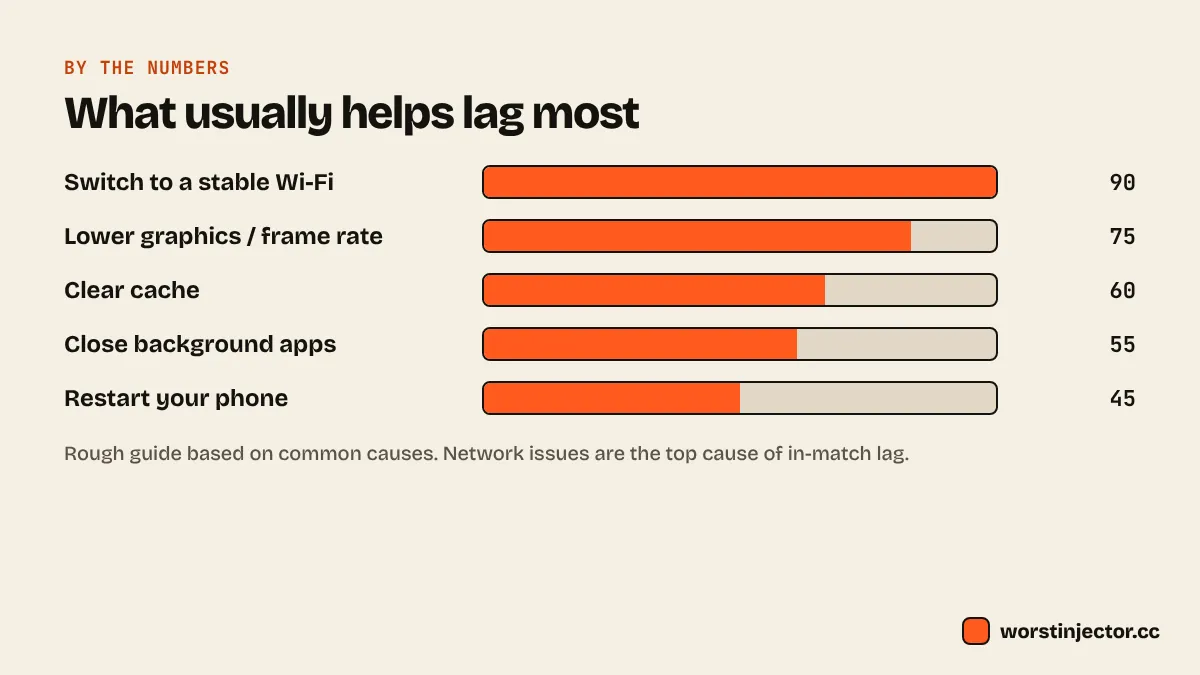
- Check your connection. In-match lag (high ping) is almost always network, not cache.
- Lower graphics settings. Turn off high frame rate and HD mode on older phones.
- Close background apps and restart your phone.
- Free up storage. Phones slow down when storage is almost full.
FAQs
Will clearing cache delete my Mobile Legends account?
No. Your account, heroes, skins and progress are saved on Moonton’s servers. Clearing cache only removes temporary files on your phone.
How often should I clear the Mobile Legends cache?
After big updates, or whenever you notice lag, slow loading or broken textures. There’s no need to do it daily.
Does clearing cache remove injected skins?
Not always. Use the Restore option in your injector first, then clear cache.
Using Worst Injector? Make sure you’re on the latest version, and read our update & fix guide.