How to Fix “Android/data Access Denied” for Worst Injector (Android 11–15)
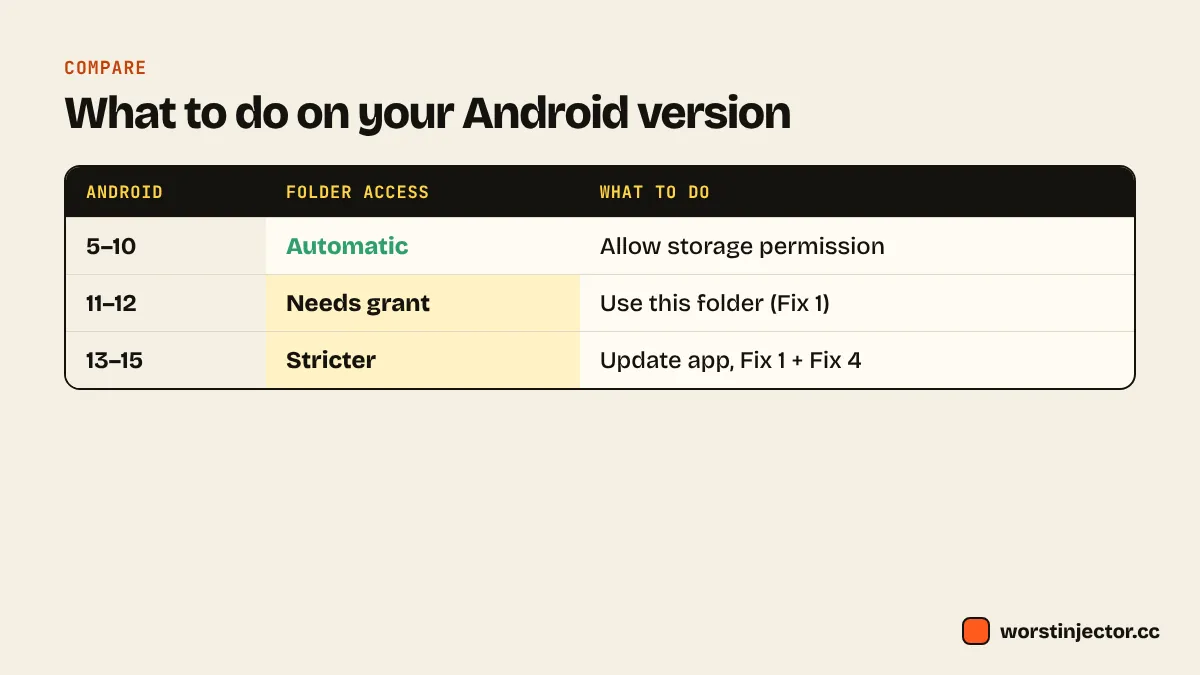
On newer Android phones, the most common Worst Injector problem isn’t the injector itself. It’s folder access. Since Android 11, Google restricts the Android/data folder where Mobile Legends keeps its files, so the injector needs your permission to reach it.
If you see “access denied”, “can’t access folder”, or skins simply don’t apply, this guide walks you through the fix for Android 11, 12, 13, 14 and 15.
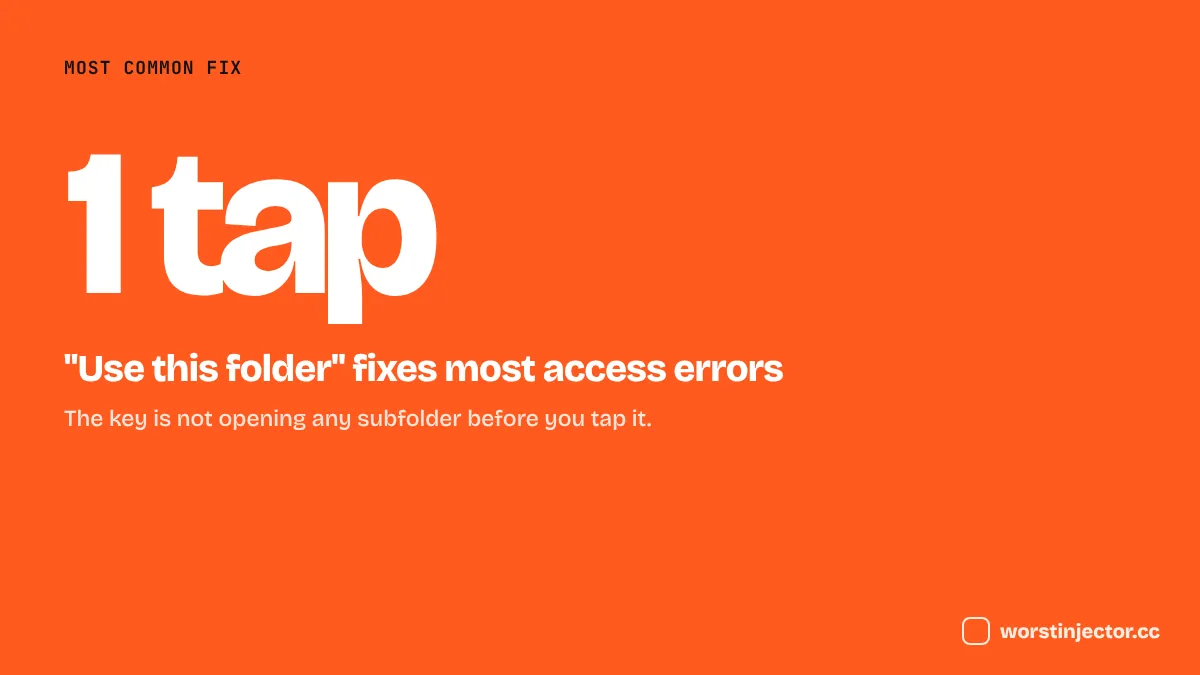
Quick fix: Open Worst Injector, tap the Grant access button, and when the file picker opens, tap Use this folder without opening any subfolder. Then allow access.
Why Android 11+ blocks the Android/data folder
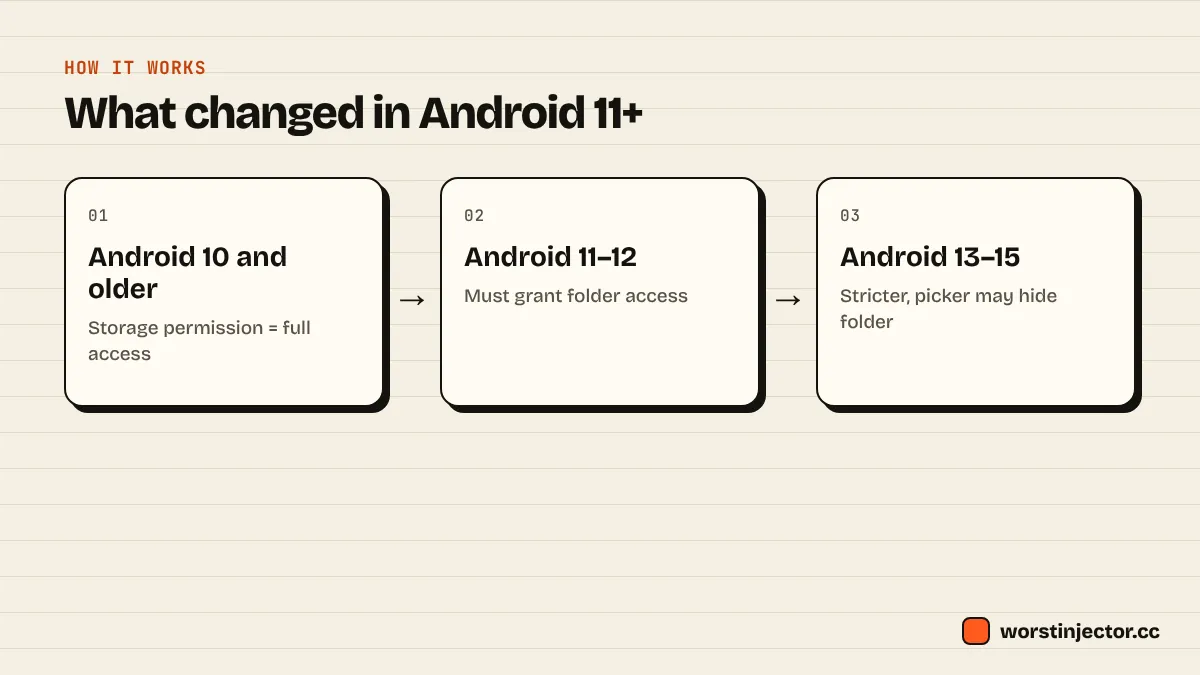
Before Android 11, any app with storage permission could read the Android/data folder. Google changed this to protect app data, so now:
- Normal storage permission is no longer enough.
- Apps must ask for access to a specific folder through Android’s file picker.
- On some Android 13–15 phones, the system file picker may hide or block Android/data unless the app uses the right method.
Fix 1: Grant folder access the right way
This fixes the problem for most people.
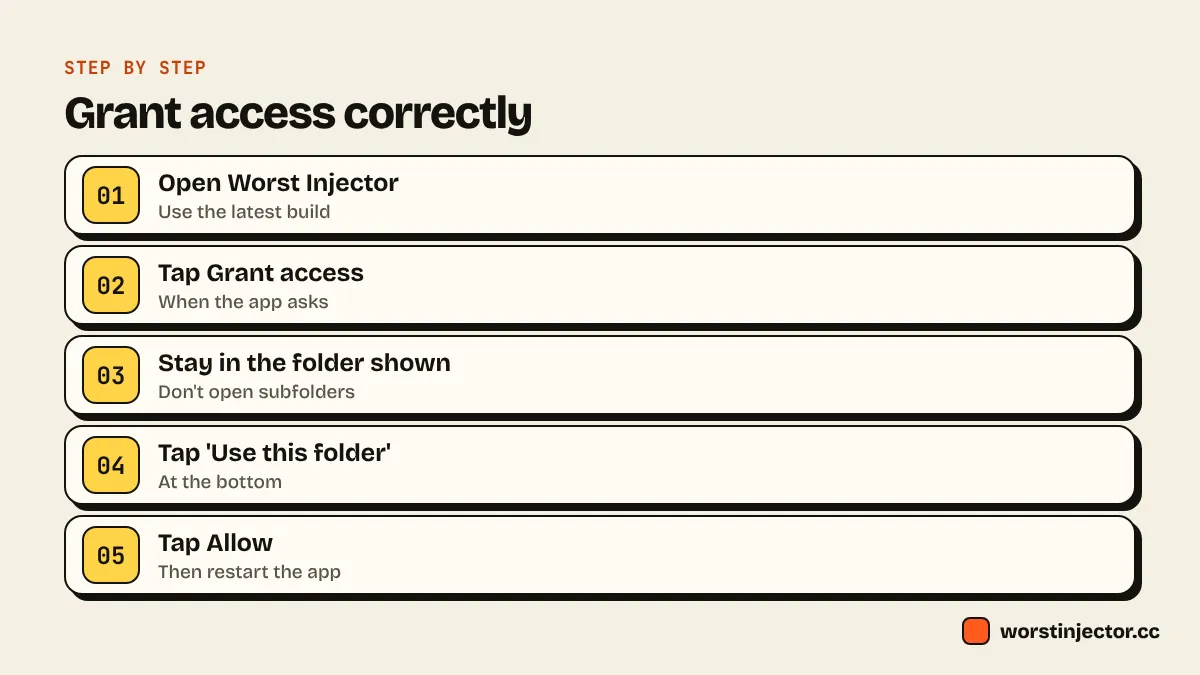
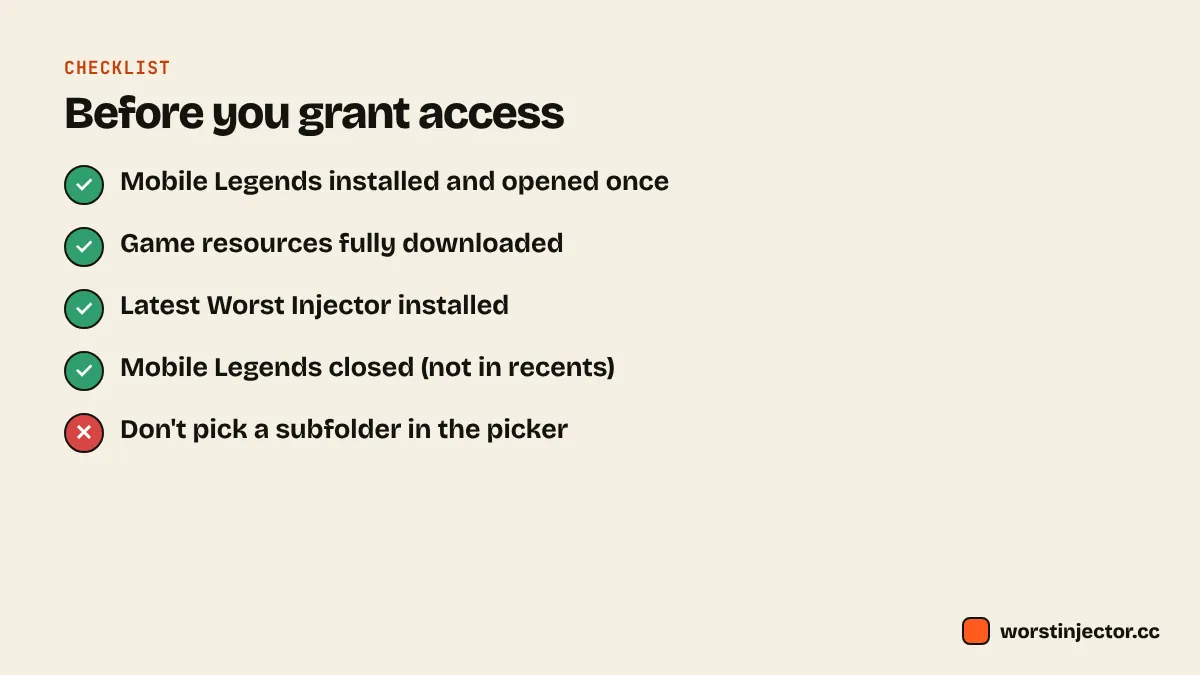
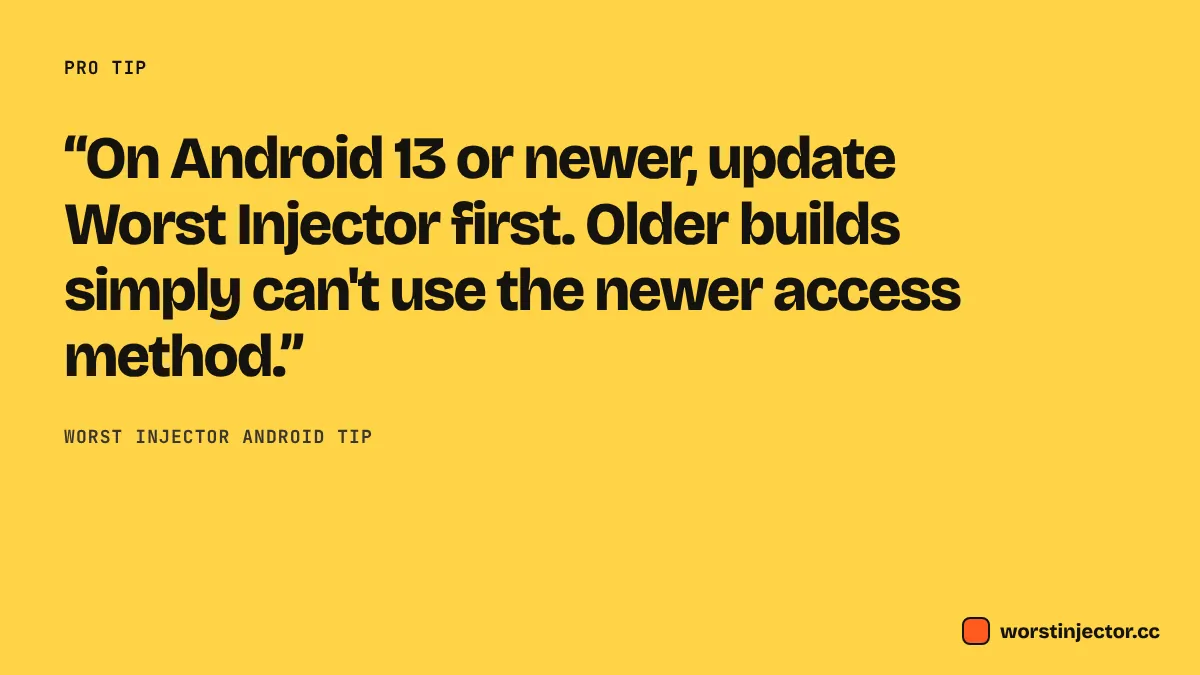
- Update to the latest Worst Injector version. Older builds may not support newer Android versions.
- Open the app. When it asks for access, tap Grant access (or similar).
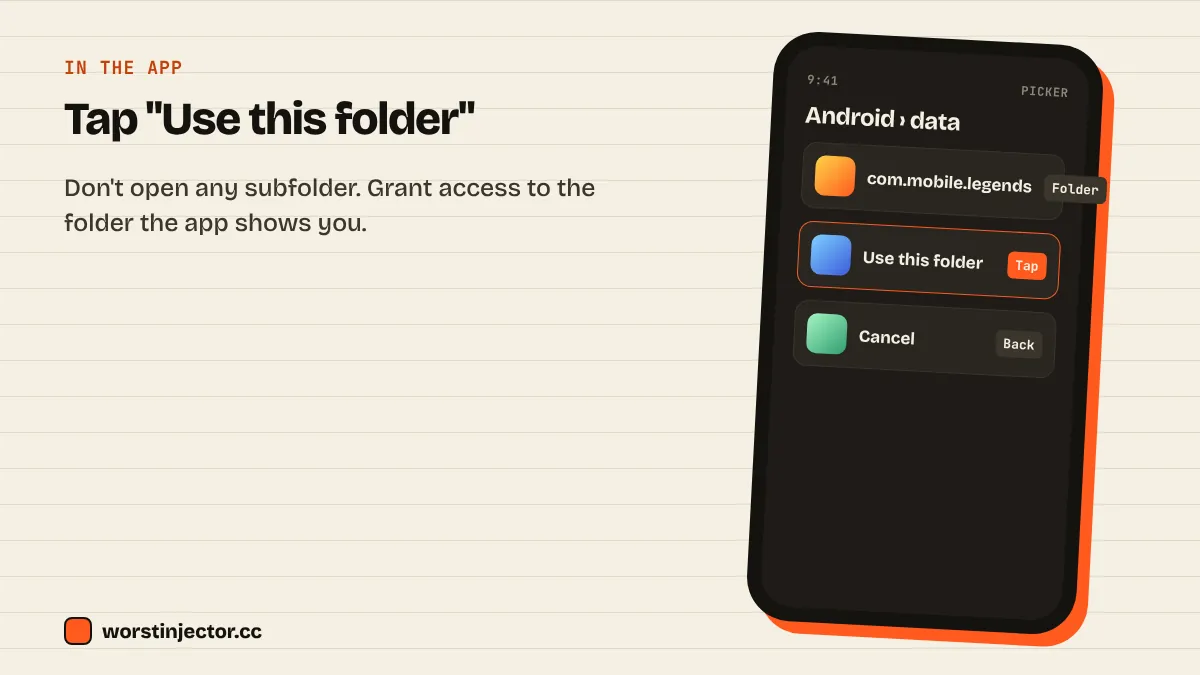
- The Android file picker opens at the right folder. Don’t open any subfolder.
- Tap Use this folder at the bottom of the screen.
- Tap Allow on the confirmation pop-up.
- Close and reopen Worst Injector, then try injecting a skin.
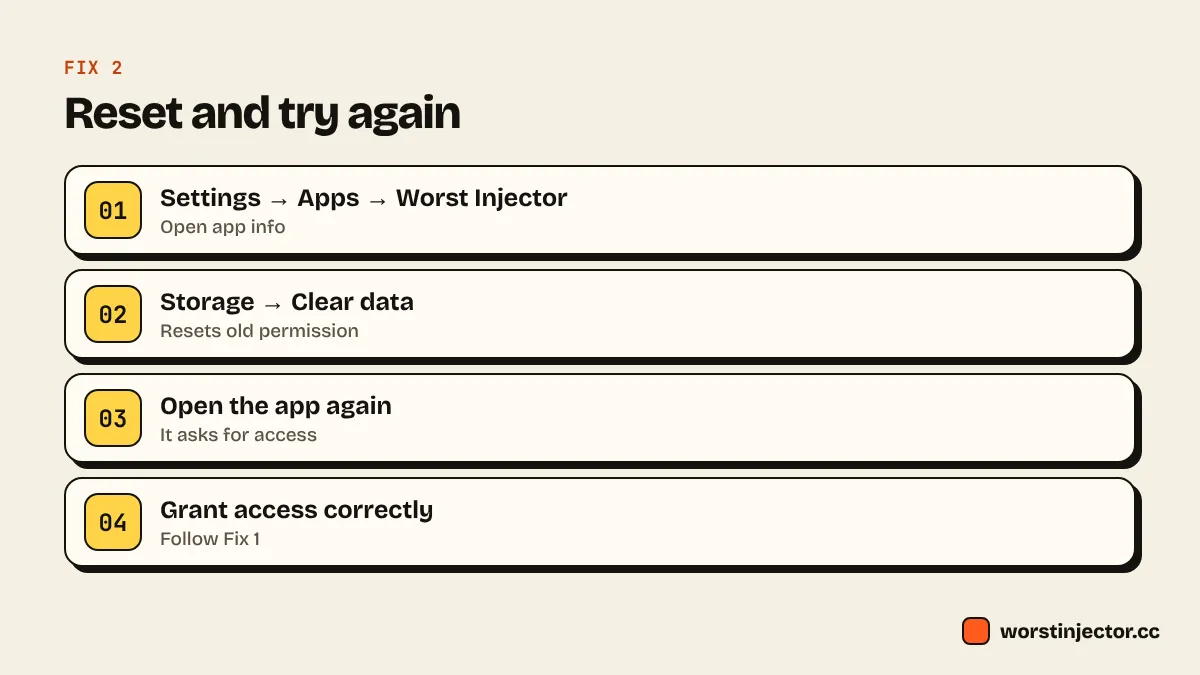
Fix 2: Reinstall and grant access on first launch
If you tapped “Deny” earlier or picked the wrong folder, the app may not ask again.
- Go to Settings → Apps → Worst Injector → Storage and tap Clear data.
- Or uninstall Worst Injector and install the latest APK again.
- On first launch, follow Fix 1 carefully.
Fix 3: Make sure Mobile Legends has its folder
Worst Injector needs the Mobile Legends folder to exist before it can change anything.
- Open Mobile Legends at least once after installing or updating it.
- Let it finish downloading resources.
- Then close the game fully and open Worst Injector.
Fix 4: Android 13, 14 and 15 phones
Newer Android versions and some brands (Samsung One UI, Xiaomi HyperOS, Oppo/Realme ColorOS, Vivo) are stricter. If the picker won’t show Android/data or “Use this folder” is greyed out:
- Use the in-app method. Recent Worst Injector builds use a method that works on Android 13+. Update first.
- Use the phone’s own Files app if the injector offers a choice. Some brand file managers are blocked. Pick the Android “Files” app.
- Restart your phone after granting access. Some devices only apply it after a reboot.
Common error messages
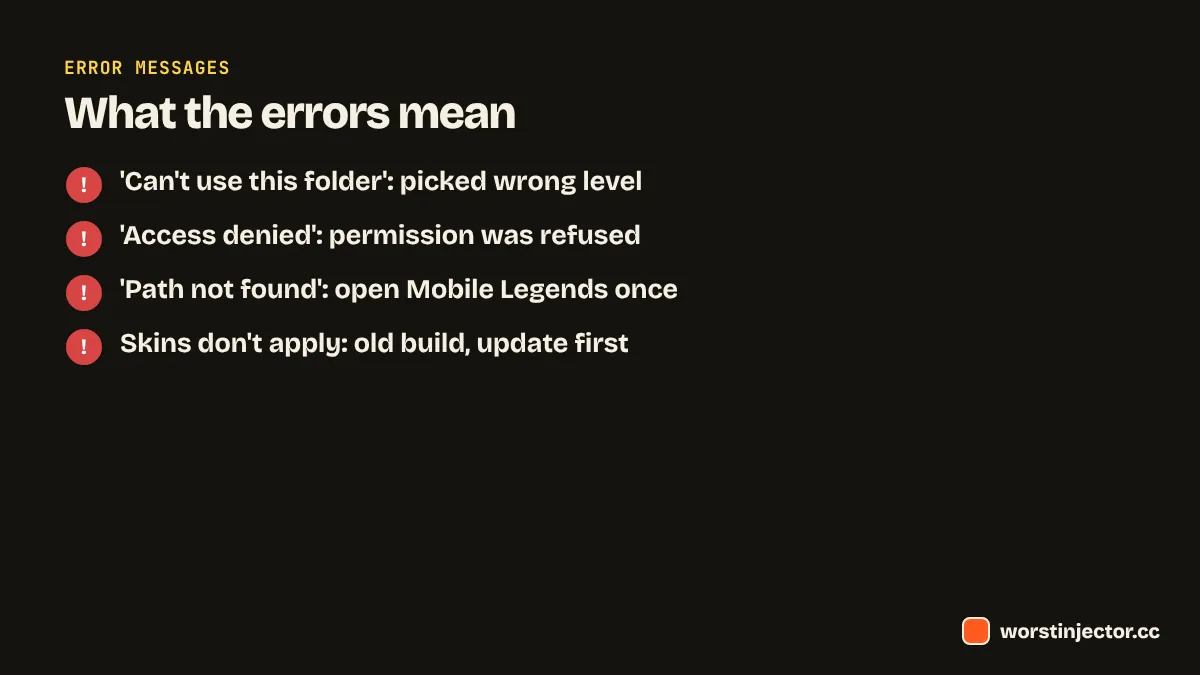
- “Can’t use this folder”: you opened a subfolder. Go back and grant access to the folder the app shows.
- “Access denied” / “Permission denied”: access was refused earlier. Clear the app’s data and try again.
- “File or path not found”: Mobile Legends hasn’t created its files yet. Open the game once.
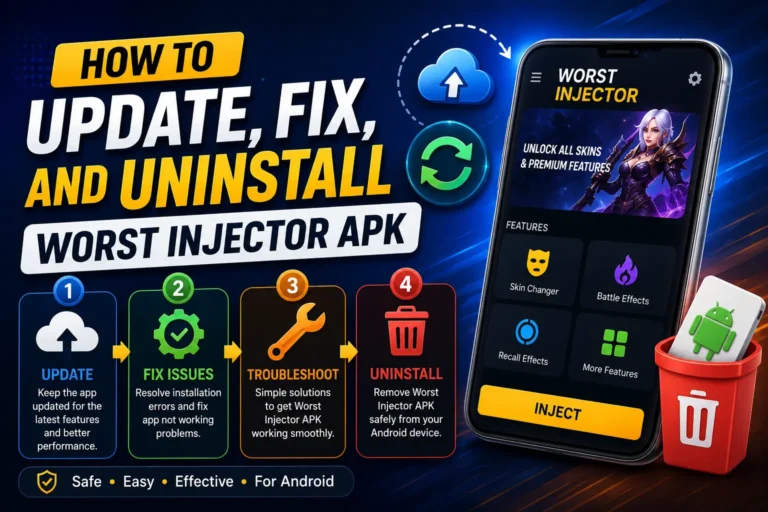
- Injects but nothing changes: you may be on an outdated build. See our update & fix guide.
Is giving folder access safe?
Granting access lets Worst Injector read and change files in the Mobile Legends folder. It doesn’t give access to your photos, messages or other apps. Still, only grant this to an injector you downloaded from a source you trust. A fake APK with folder access can do more damage. See is Worst Injector safe?
FAQs
Do I need root to use Worst Injector on Android 13?
No. Worst Injector doesn’t need root. You only need to grant folder access correctly.
Why does access reset after a Mobile Legends update?
Big game updates can recreate the game folder, which removes previous permissions. Grant access again after updating.
Does this work on Samsung phones?
Yes. On Samsung, use the Android file picker that opens from the app, and restart the phone if access doesn’t stick.
Still stuck? Read our full Worst Injector update & fix guide or download the latest version.