How to Restore Default Skins in Mobile Legends After Using an Injector
Injected skins are fun until something goes wrong. A skin shows a black texture, a hero looks broken in the lobby, or a big Mobile Legends update is coming and you want a clean game first. In all of these cases you need to restore the default skins.
This guide shows three methods, from the quickest to the most thorough. Start with Method 1 and only move on if it doesn’t fix the problem.
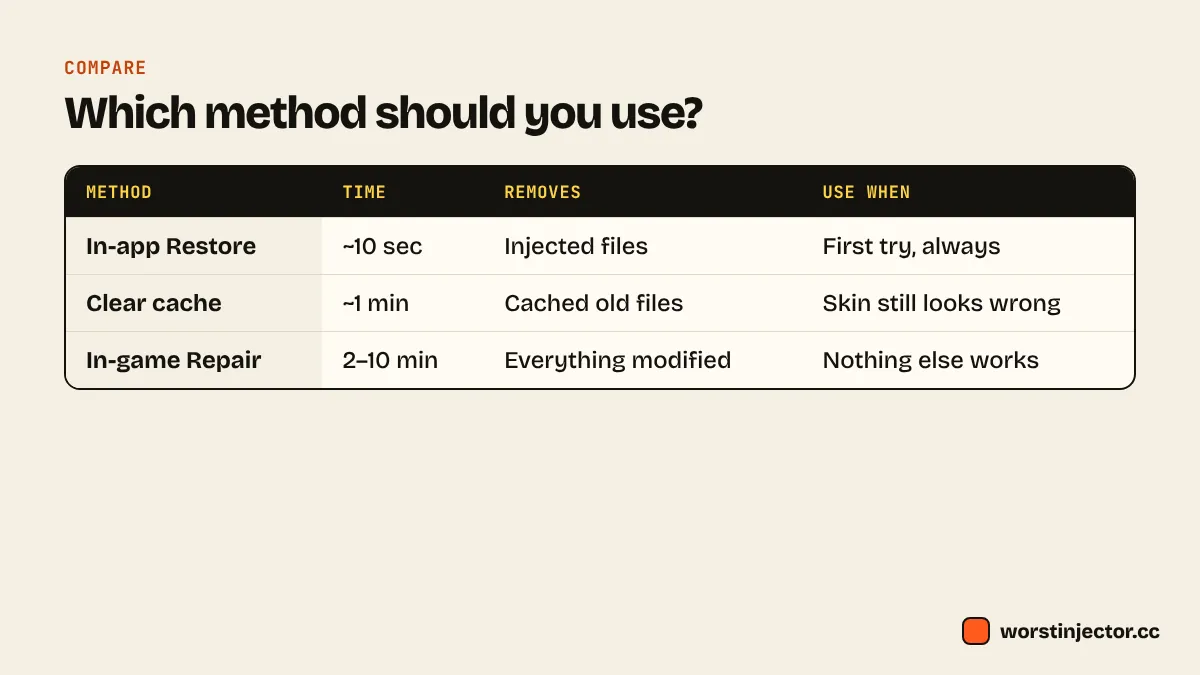
Quick answer: Open Worst Injector, go to Restore/Reset and tap Restore all. Close Mobile Legends fully and reopen it. If skins still look wrong, use the in-game Repair option on the login screen.
When should you restore default skins?
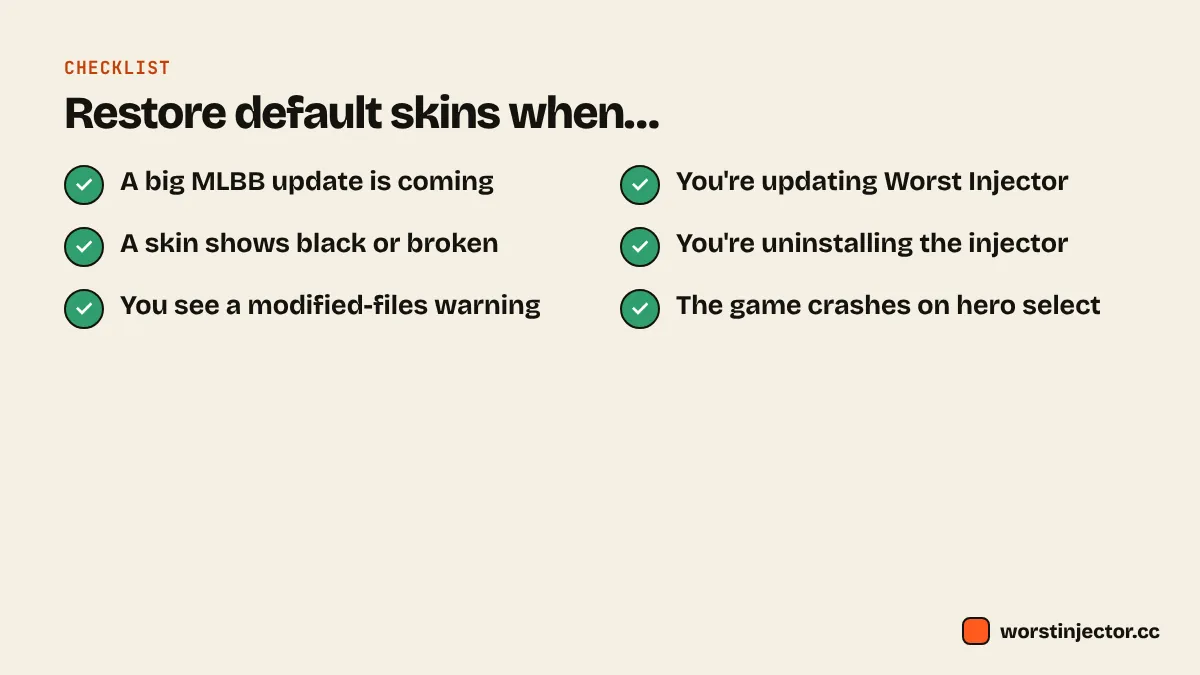
- Before a Mobile Legends update. This prevents mismatched files after the patch.
- Before updating Worst Injector. This gives you a clean start with the new build.
- When a skin looks broken. Missing textures, wrong models or crashes on hero select.
- Before uninstalling the injector. Otherwise injected files stay in the game folder.
- If you get a “modified files” warning. Restore and stop injecting on that account.
Method 1: Restore inside Worst Injector (fastest)
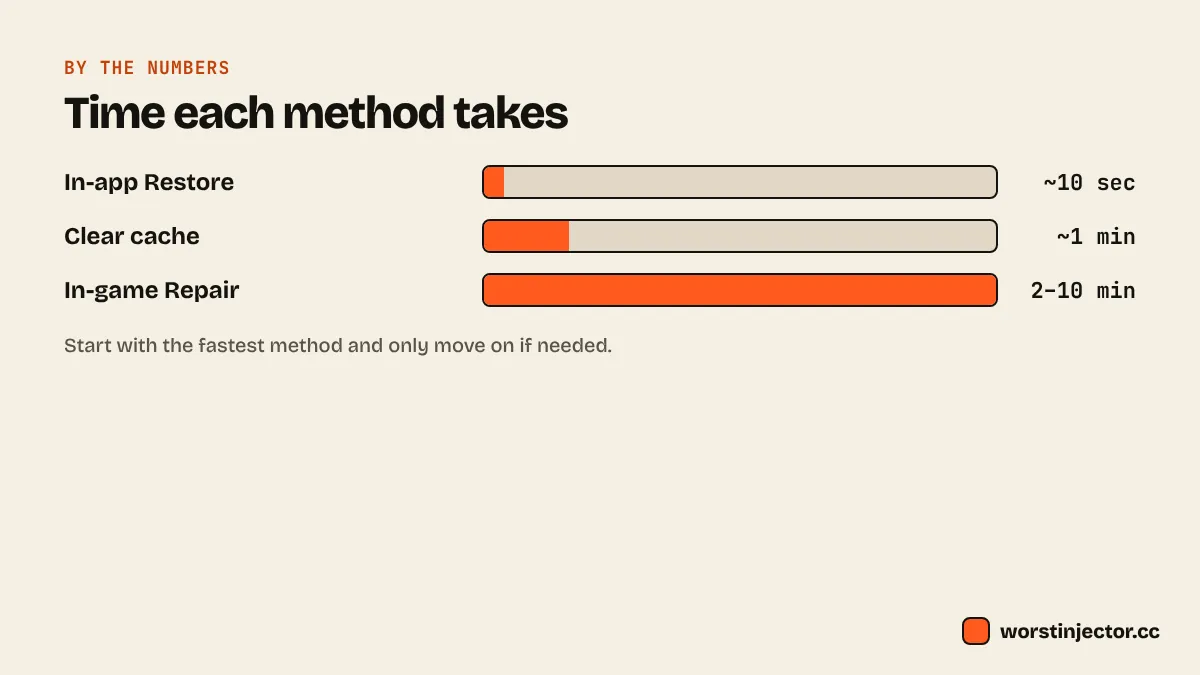
Worst Injector keeps track of the files it replaced, so it can put the originals back.
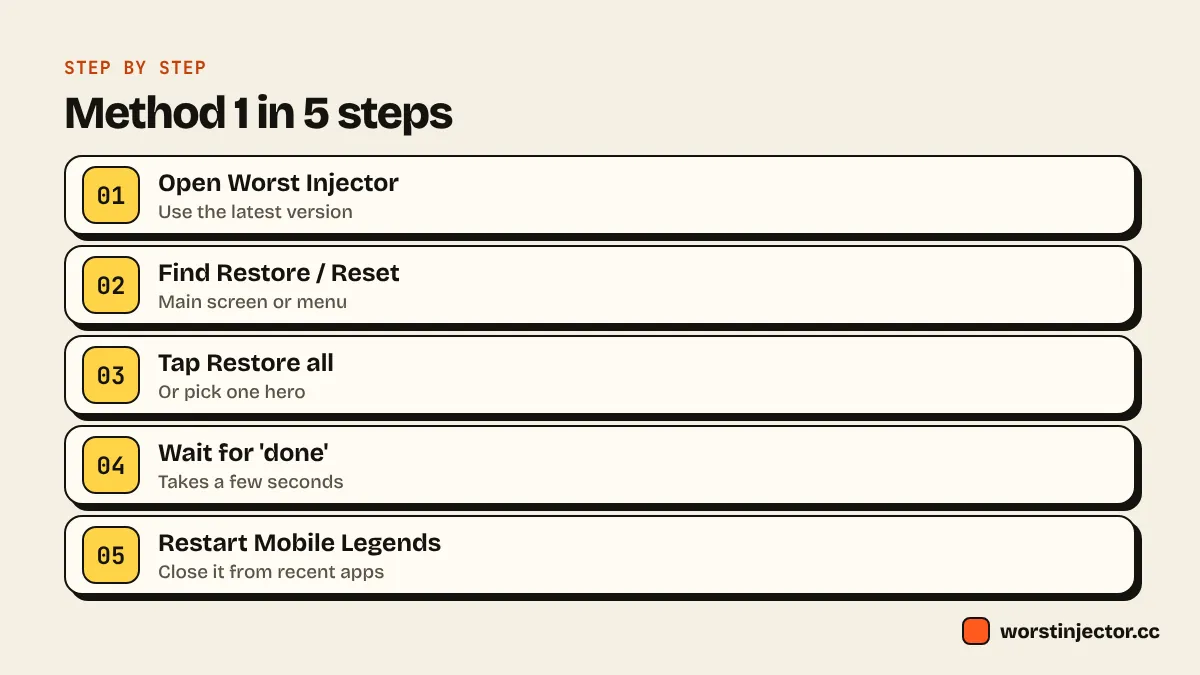
- Open Worst Injector.
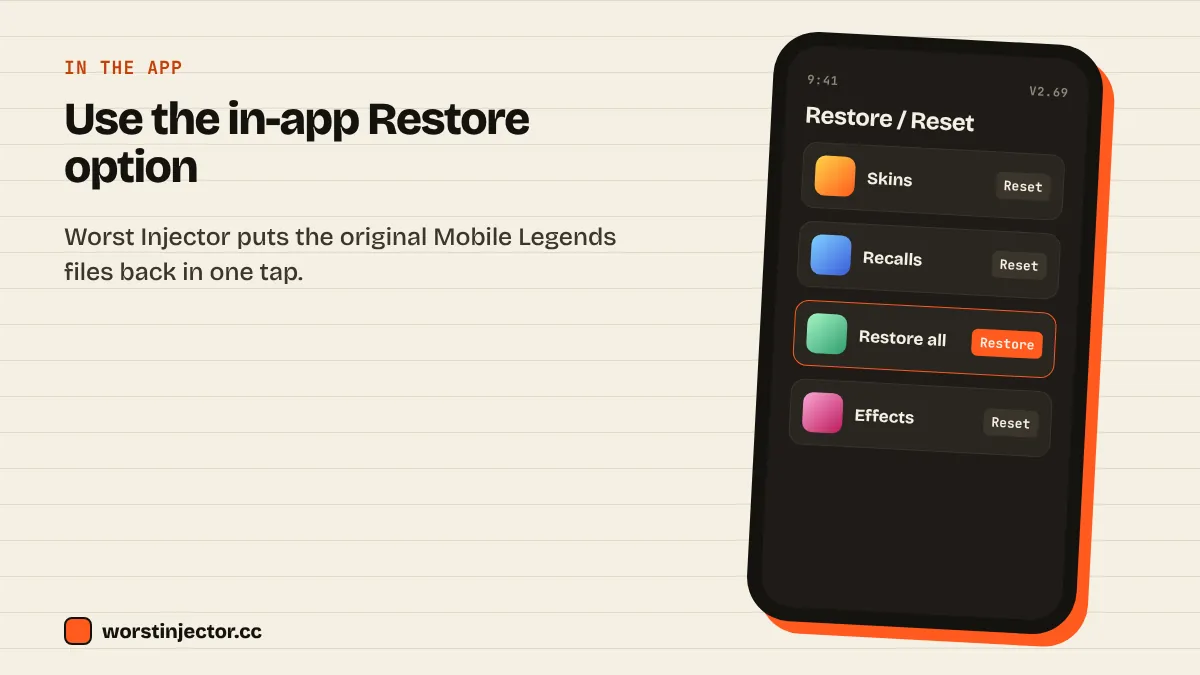
- Go to the Restore or Reset option. In most builds it’s on the main screen or in the menu.
- Tap Restore all, or restore one hero at a time.
- Wait for the “done” message.
- Close Mobile Legends completely (remove it from recent apps) and open it again.
Method 2: Clear the Mobile Legends cache
If a skin still looks wrong after restoring, the game may be holding old files in its cache.
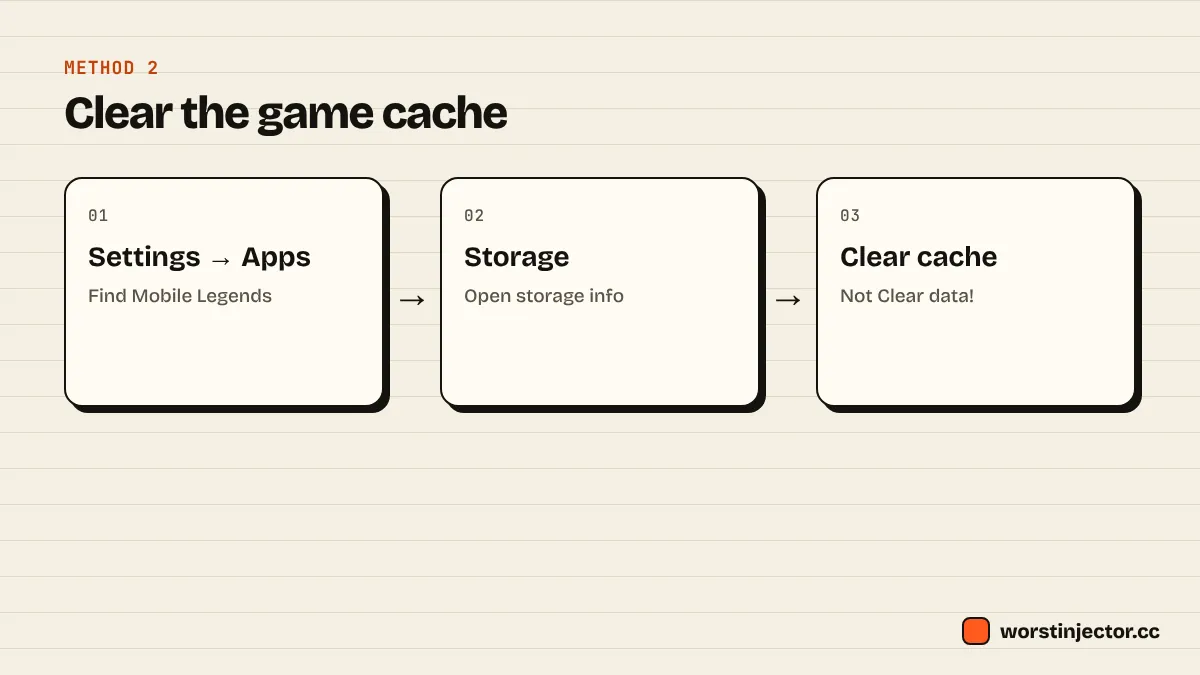
- Go to Settings → Apps → Mobile Legends: Bang Bang.
- Tap Storage.
- Tap Clear cache. Don’t tap Clear data, or you’ll have to re-download game resources.
- Open the game again.
Our Mobile Legends cache guide covers this in more detail, including the in-game cache cleaner.
Method 3: Use the in-game Repair tool (most thorough)
Mobile Legends has a built-in tool that checks every game file and re-downloads anything that doesn’t match. This removes injected files even if the injector can’t.
- Open Mobile Legends and wait for the login screen.
- Tap the Repair or Fix icon. It’s usually in the top-right corner of the login screen.
- Confirm and let it scan. It may download some files, so use Wi-Fi.
- The game restarts with original files.
Restored, but skins still show?
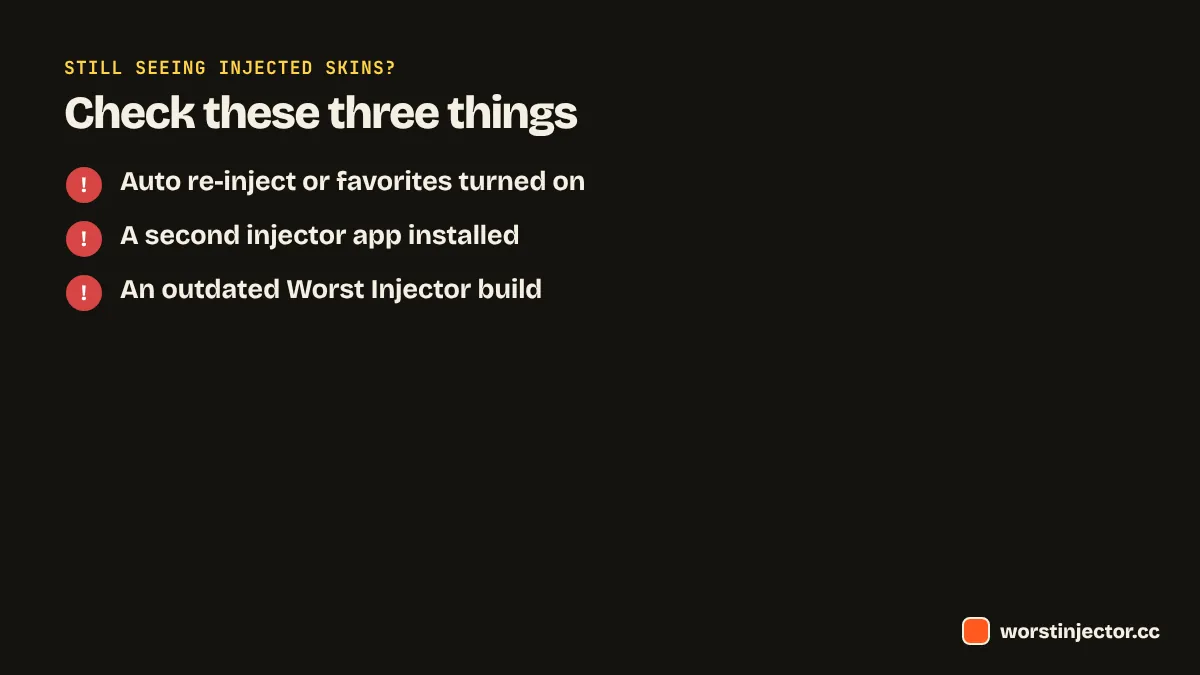
- You injected again by accident. Some builds re-apply favorites on launch. Turn that off.
- Two injectors installed. Another injector may also be replacing files. Restore and uninstall it too.
- Old build. An outdated Worst Injector may not track files from the newest game version. Update first using our update guide, then restore.
Should you restore before every game update?
Yes, it’s the single best habit for avoiding broken skins. Big Mobile Legends patches change file names and folders. If injected files are left behind, the game can crash, show broken models or flag modified files. Restoring first takes ten seconds and avoids all of that.
FAQs
Will restoring default skins delete skins I bought?
No. Skins you own are tied to your account on Moonton’s servers. Restoring only removes files the injector changed on your phone.
Do I lose my settings if I use Repair?
No. Repair only checks game files. Your account, heroes, emblems and settings are saved on the server.
How long does the in-game Repair take?
Usually 2–10 minutes, depending on how many files need to be re-downloaded and your internet speed.
Next, make sure you’re on the newest build. Check the Worst Injector version history and download the latest version.